榨干512M小鸡性能:Alpine Linux NAT VPS四合一”贪心”节点搭建指南 🚀 作者: GLM5.0时间: 2025年2月字数: 约3000字阅读时间: 12分钟
最近淘了一台印度的NAT VPS,配置不高,但价格便宜,而且给到了10个公网端口映射。对于这种配置极其有限的机器,如何将性能榨干?本文将分享一套轻量级的四合一”贪心”方案。
🌟 前言 最近我在 IDC 000325 淘了一台印度的 NAT VPS。配置不高,但价格便宜,而且给到了 10 个公网端口映射 。
对于这种配置极其有限(通常内存只有 256M-512M)的 NAT 机器,如果还去跑 Docker 或者臃肿的面板(如 1Panel/宝塔)显然是不明智的。为了将机器性能榨干,我选择直接使用轻量级的 Alpine Linux 系统,并配合 Sing-box 搭建一套包含 Hysteria2 + TUIC + VLESS Reality (x2) 的四合一”贪心”方案。
📊 为什么选择这套方案? 我们手里有 10 个端口,只用一个太浪费,用多了又怕性能跟不上。这套方案占用了 4 个端口,兼顾了速度 与隐蔽性 :
节点类型
协议
端口
特点
适用场景
节点1 Hysteria 2
UDP
暴力发包,速度最快
线路差、丢包高的环境
节点2 TUIC v5
UDP
基于 QUIC,0-RTT,延迟极低
追求低延迟场景
节点3 VLESS Reality
TCP
伪装 Microsoft,无视证书
平时挂机,稳定首选
节点4 VLESS Reality
TCP
伪装 Apple,备用节点
防止微软系域名被针对
🎯 方案优势
✅ Hysteria 2 :专门对付线路差、丢包高的环境
✅ TUIC v5 :延迟极低,适合实时通信
✅ VLESS Reality (Microsoft) :目前最稳的协议,无视证书,伪装成微软流量
✅ VLESS Reality (Apple) :备用节点,防止微软系域名被针对
📚 基础知识补课:Debian 用户如何上手 Alpine? 很多玩 VPS 的朋友习惯了 Debian/Ubuntu,拿到 Alpine 这种极其精简(镜像只有 5MB 大小)的系统可能会一脸懵。
1. 核心区别
特性
Debian/Ubuntu
Alpine Linux
包管理器 aptapk
服务管理 systemd (systemctl)OpenRC (rc-service)
底层库 glibcmusl libc
镜像大小 ~500MB
~5MB
💡 小贴士 :Alpine 使用 musl libc 而不是 glibc,但这通常不影响 Go 写的 Sing-box 运行。
2. 常用命令对照表 如果你是 Debian 用户,请参照下表操作 Alpine:
操作
Debian / Ubuntu
Alpine Linux
更新软件源
apt updateapk update
安装软件
apt install curlapk add curl
卸载软件
apt remove curlapk del curl
重启服务
systemctl restart nginxrc-service nginx restart
停止服务
systemctl stop nginxrc-service nginx stop
开机自启
systemctl enable nginxrc-update add nginx default
🔌 TCP vs UDP:为什么我们需要混合搭配? 在端口转发面板中,你通常会看到协议选择。理解这两种协议的区别,有助于我们更好地选择节点。
TCP (Transmission Control Protocol) 特点 :稳重、可靠。像寄挂号信,保证对方收到,收不到会重发。
适用场景 :
网页浏览、文件下载
Reality 协议基于 TCP ,因为特征极小,隐蔽性最高适合平时挂机使用
UDP (User Datagram Protocol) 特点 :甚至、狂野。像寄明信片或者广播,发出去就不管了,速度极快,但可能会丢包。
适用场景 :
视频流、游戏
Hysteria2 和 TUIC 基于 UDP ,它们在应用层解决了丢包问题在看 4K 视频时往往比 TCP 更快
缺点 :国内运营商(特别是晚高峰)会对 UDP 流量进行限速(QOS)。
📝 结论
使用场景
推荐协议
原因
平时挂机
TCP (Reality)
稳如老狗,隐蔽性高
看 4K 视频
UDP (Hy2)
暴力提速,突破带宽限制
实时通信
UDP (TUIC)
延迟极低,体验流畅
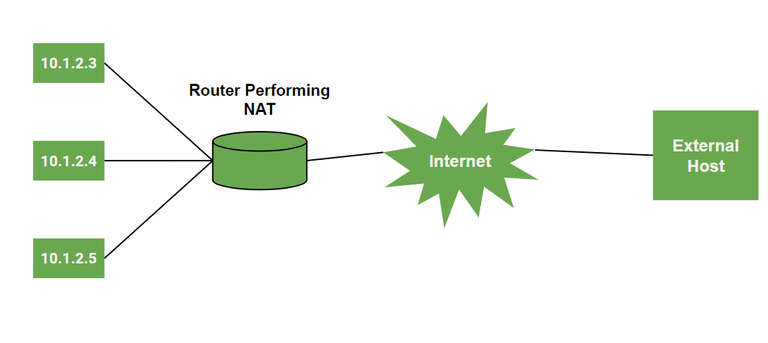
🛠️ 一键”贪心”安装脚本 (Alpine 专用) 本脚本不包含自动获取 IP 功能(NAT 机器获取的 IP 往往是内网 IP,不准确),请务必在脚本顶部的配置区域填入你在服务商面板看到的公网 IP 和端口映射规则。
准备工作
进入你的 VPS 管理面板
找到端口转发(Port Forwarding)
准备 4 个端口(例如:面板给你的是 34567, 34568, 34569, 34570),并将它们映射到内网相同的端口
确保这 4 个端口同时开启了 TCP 和 UDP 转发
⚠️ 重要提醒 :端口映射时建议内外端口保持一致,方便后续管理。
安装脚本 复制以下代码,修改顶部的 配置区域 ,然后粘贴到 SSH 终端运行:
1
2
3
4
5
6
7
8
9
10
11
12
13
14
15
16
17
18
19
20
21
22
23
24
25
26
27
28
29
30
31
32
33
34
35
36
37
38
39
40
41
42
43
44
45
46
47
48
49
50
51
52
53
54
55
56
57
58
59
60
61
62
63
64
65
66
67
68
69
70
71
72
73
74
75
76
77
78
79
80
81
82
83
84
85
86
87
88
89
90
91
92
93
94
95
96
97
98
99
100
101
102
103
104
105
106
107
108
109
110
111
112
113
114
115
116
117
118
119
120
121
122
123
124
125
126
127
128
129
130
131
132
133
134
135
136
137
138
139
140
141
142
143
144
145
146
147
148
149
150
151
152
153
154
155
156
157
158
159
160
161
162
163
#!/bin/sh PUBLIC_IP="139.59.**.*" PORT_HY2=34567 PORT_TUIC=34568 PORT_REALITY_1=34569 PORT_REALITY_2=34570 echo -e "\033[33m[1/6] 正在更新 Alpine 源并安装依赖...\033[0m" apk update apk add curl openssl ca-certificates if rc-service sing-box status > /dev/null 2>&1; then rc-service sing-box stop rc-update del sing-box default fi rm -rf /usr/local/bin/sing-box /etc/sing-boxecho -e "\033[33m[2/6] 下载并安装 Sing-box...\033[0m" ARCH=$(uname -m) case $ARCH in x86_64) SB_ARCH="amd64" ;; aarch64) SB_ARCH="arm64" ;; *) echo "不支持的架构: $ARCH " ; exit 1 ;; esac SB_VER="1.8.8" DOWNLOAD_URL="https://github.com/SagerNet/sing-box/releases/download/v${SB_VER} /sing-box-${SB_VER} -linux-${SB_ARCH} .tar.gz" curl -L -o sing-box.tar.gz "$DOWNLOAD_URL " tar -zxvf sing-box.tar.gz mv sing-box-${SB_VER} -linux-${SB_ARCH} /sing-box /usr/local/bin/chmod +x /usr/local/bin/sing-boxrm -rf sing-box.tar.gz sing-box-${SB_VER} -linux-${SB_ARCH} echo -e "\033[33m[3/6] 生成证书与密钥...\033[0m" mkdir -p /etc/sing-boxopenssl req -x509 -newkey rsa:2048 -nodes -sha256 \ -keyout /etc/sing-box/self.key \ -out /etc/sing-box/self.crt \ -days 3650 \ -subj "/CN=bing.com" UUID=$(/usr/local/bin/sing-box generate uuid) KEYS_1=$(/usr/local/bin/sing-box generate reality-keypair) PK_1=$(echo "$KEYS_1 " | grep "PrivateKey" | cut -d: -f2 | tr -d ' "' ) PUB_1=$(echo "$KEYS_1 " | grep "PublicKey" | cut -d: -f2 | tr -d ' "' ) SID_1=$(openssl rand -hex 8) KEYS_2=$(/usr/local/bin/sing-box generate reality-keypair) PK_2=$(echo "$KEYS_2 " | grep "PrivateKey" | cut -d: -f2 | tr -d ' "' ) PUB_2=$(echo "$KEYS_2 " | grep "PublicKey" | cut -d: -f2 | tr -d ' "' ) SID_2=$(openssl rand -hex 8) echo -e "\033[33m[4/6] 写入 Sing-box 配置文件...\033[0m" cat << EOF > /etc/sing-box/config.json { "log": { "level": "info", "output": "/var/log/sing-box.log" }, "inbounds": [ { "type": "hysteria2", "tag": "in-hy2", "listen": "::", "listen_port": $PORT_HY2, "users": [{ "password": "$UUID" }], "tls": { "enabled": true, "certificate_path": "/etc/sing-box/self.crt", "key_path": "/etc/sing-box/self.key" } }, { "type": "tuic", "tag": "in-tuic", "listen": "::", "listen_port": $PORT_TUIC, "users": [{ "uuid": "$UUID", "password": "$UUID" }], "congestion_control": "bbr", "tls": { "enabled": true, "certificate_path": "/etc/sing-box/self.crt", "key_path": "/etc/sing-box/self.key" } }, { "type": "vless", "tag": "in-reality-ms", "listen": "::", "listen_port": $PORT_REALITY_1, "users": [{ "uuid": "$UUID", "flow": "xtls-rprx-vision" }], "tls": { "enabled": true, "server_name": "www.microsoft.com", "reality": { "enabled": true, "handshake": { "server": "www.microsoft.com", "server_port": 443 }, "private_key": "$PK_1", "short_id": ["$SID_1"] } } }, { "type": "vless", "tag": "in-reality-apple", "listen": "::", "listen_port": $PORT_REALITY_2, "users": [{ "uuid": "$UUID", "flow": "xtls-rprx-vision" }], "tls": { "enabled": true, "server_name": "gateway.icloud.com", "reality": { "enabled": true, "handshake": { "server": "gateway.icloud.com", "server_port": 443 }, "private_key": "$PK_2", "short_id": ["$SID_2"] } } } ], "outbounds": [{ "type": "direct" }] } EOF echo -e "\033[33m[5/6] 配置 OpenRC 开机自启...\033[0m" cat << 'EOR' > /etc/init.d/sing-boxname="sing-box" description="Sing-box Proxy Service" command ="/usr/local/bin/sing-box" command_args="run -c /etc/sing-box/config.json" command_background=true pidfile="/run/sing-box.pid" depend need net after firewall } EOR chmod +x /etc/init.d/sing-boxrc-update add sing-box default rc-service sing-box restart echo "" echo "==========================================================" echo " Alpine Linux 四合一节点安装完成" echo "==========================================================" echo "提示: NAT机器使用自签名证书,Hy2/Tuic 必须开启【跳过证书验证】" echo "==========================================================" echo "" echo ">>> 节点 1: Hysteria 2 (UDP暴力加速)" echo "hysteria2://$UUID @$PUBLIC_IP :$PORT_HY2 /?insecure=1&sni=bing.com#Hy2-NAT" echo "" echo ">>> 节点 2: TUIC v5 (UDP低延迟)" echo "tuic://$UUID :$UUID @$PUBLIC_IP :$PORT_TUIC /?congestion_control=bbr&alpn=h3&sni=bing.com&allow_insecure=1#TUIC-NAT" echo "" echo ">>> 节点 3: VLESS Reality (TCP/Microsoft - 推荐主力)" echo "vless://$UUID @$PUBLIC_IP :$PORT_REALITY_1 ?encryption=none&flow=xtls-rprx-vision&security=reality&sni=www.microsoft.com&fp=chrome&pbk=$PUB_1 &sid=$SID_1 &type=tcp&headerType=none#Reality-MS" echo "" echo ">>> 节点 4: VLESS Reality (TCP/Apple - 备用防封)" echo "vless://$UUID @$PUBLIC_IP :$PORT_REALITY_2 ?encryption=none&flow=xtls-rprx-vision&security=reality&sni=gateway.icloud.com&fp=safari&pbk=$PUB_2 &sid=$SID_2 &type=tcp&headerType=none#Reality-Apple" echo "" echo "=========================================================="
📱 客户端连接必读 由于我们没有域名,Hy2 和 TUIC 使用的是自签名证书,Reality 使用的是偷来的域名证书。
对于 Hy2 和 TUIC
客户端
配置要点
v2rayN 添加节点后,必须在设置里把 AllowInsecure (允许不安全) 勾选上
Nekobox 导入链接通常会自动识别 insecure=1,如果没有,请手动开启”跳过证书验证”
Clash Meta 配置文件中需包含 skip-cert-verify: true
对于 Reality (TCP) 直接导入链接即可使用,这是目前最完美的免域名方案,强烈建议作为主力节点 。
💡 小贴士 :Reality 协议通过”偷取”大厂证书实现完美伪装,无需自己申请域名和证书,是目前最方便的方案。
📊 方案对比总结
特性
Hysteria 2
TUIC v5
VLESS Reality
传输协议 UDP (QUIC)
UDP (QUIC)
TCP
速度表现 ⭐⭐⭐⭐⭐
⭐⭐⭐⭐
⭐⭐⭐
隐蔽性 ⭐⭐⭐
⭐⭐⭐
⭐⭐⭐⭐⭐
抗封锁 ⭐⭐⭐
⭐⭐⭐
⭐⭐⭐⭐⭐
证书要求 自签名
自签名
无需证书
推荐场景 高丢包环境
低延迟需求
日常主力
✅ 总结 通过这套四合一方案,我们成功在 512M 内存的 NAT 小鸡上搭建了:
Hysteria 2 :暴力发包,对付恶劣线路TUIC v5 :低延迟,适合实时通信VLESS Reality (Microsoft) :稳定隐蔽,日常主力VLESS Reality (Apple) :备用节点,防止被针对
🎯 核心收获
掌握了 Alpine Linux 的基本操作
理解了 TCP 和 UDP 协议的区别与适用场景
学会了在资源受限环境下搭建多协议节点
实现了速度与隐蔽性的完美平衡
🔮 优化建议
监控资源 :使用 htop 监控内存使用情况日志管理 :定期清理 /var/log/sing-box.log端口轮换 :如遇封锁,可更换端口重新部署负载均衡 :多节点间可根据网络状况自动切换
📚 参考资源
🔗 相关文章推荐: